
Does Apex Trader Funding Work With TradingView?
Yes, Apex Trader Funding can be used with TradingView, but not directly. The connection works through Tradovate, which acts as the execution and account bridge between Apex Trader Funding and TradingView.
This setup allows traders to use TradingView’s charting interface while routing trades through a Tradovate-linked Apex account. Understanding how this connection works—and its limitations—is important before attempting to trade live or during an evaluation.
This guide explains:
- How does Apex Trader Funding work with TradingView?
- What do you need before connecting?
- Step-by-step setup instructions
- Common issues and limitations
How Apex Trader Funding Works With TradingView?
Apex Trader Funding does not natively integrate with TradingView on its own. Instead, TradingView connects to Tradovate, which is one of the supported platforms used by Apex Trader Funding.
In simple terms:
- Apex Trader Funding → provides the evaluation or funded account.
- Tradovate → acts as the brokerage/execution platform.
- TradingView → provides charting and order entry.
When connected correctly, orders placed on TradingView are executed through Tradovate and reflected in your Apex account.
This setup is commonly used by traders who prefer TradingView’s interface but still want to trade within Apex’s rules.
What You Need Before You Start?
Before setting up TradingView with Apex Trader Funding, make sure you have:
- An active Apex Trader Funding account
- A Tradovate account linked to Apex Trader Funding
- A TradingView account (Free or paid; order routing requires supported plans)
- The TradingView add-on is enabled in Tradovate
Without these prerequisites, TradingView will not be able to route trades to your Apex account.
Step-by-Step: How to Connect Apex Trader Funding to TradingView?
Below is the exact setup process, expanded for clarity.
Step 1: Log In to Your Tradovate Account
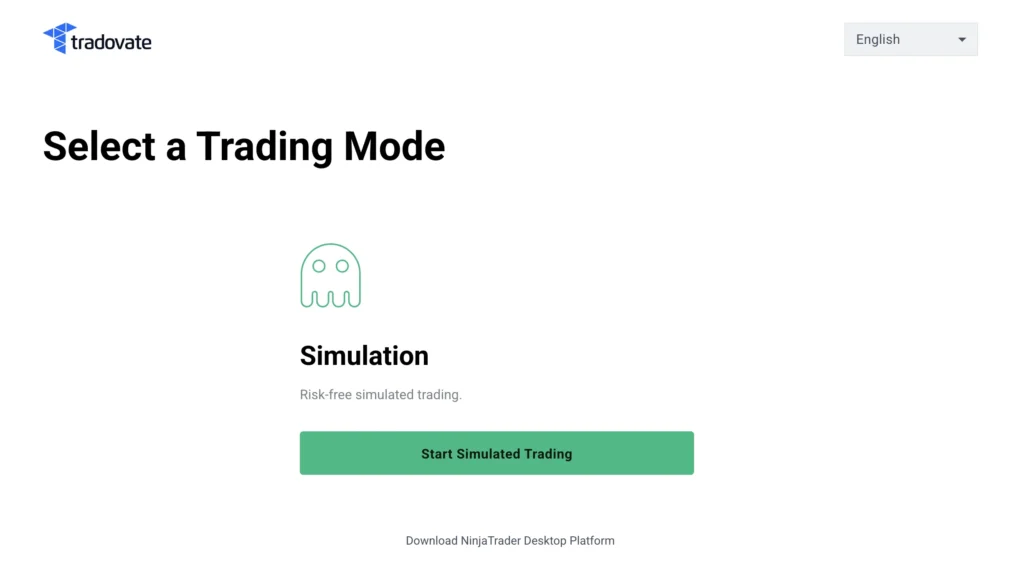
Start by logging in to your Tradovate account using the credentials provided or linked through Apex Trader Funding.
Make sure you are accessing the correct Tradovate account associated with your Apex evaluation or funded account, not a personal brokerage account.
Step 2: Go to Tradovate Settings
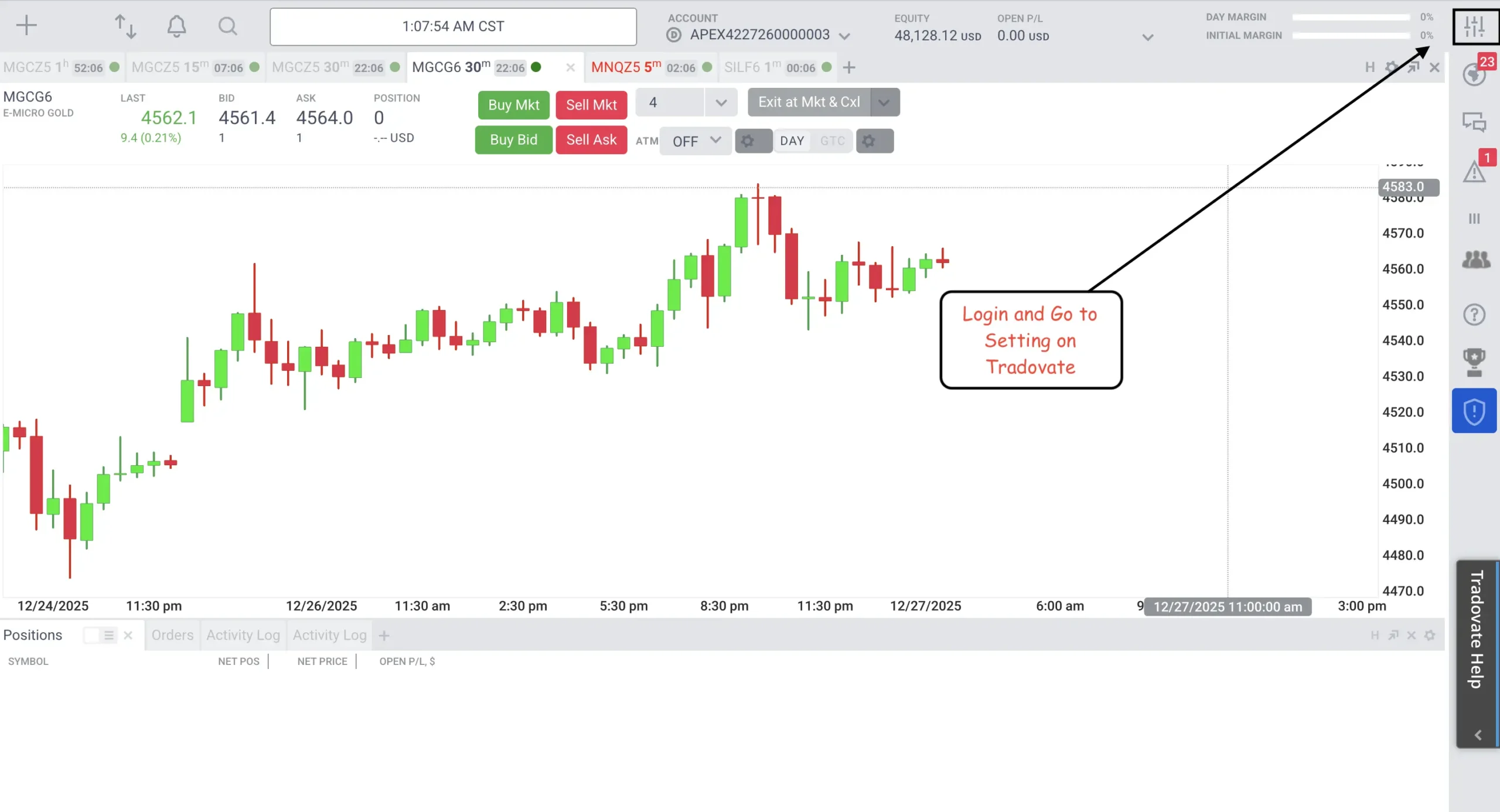
Once logged in, locate the Settings section within the Tradovate platform.
This area controls platform preferences, subscriptions, and add-ons connected to your account.
Step 3: Navigate to Add-Ons
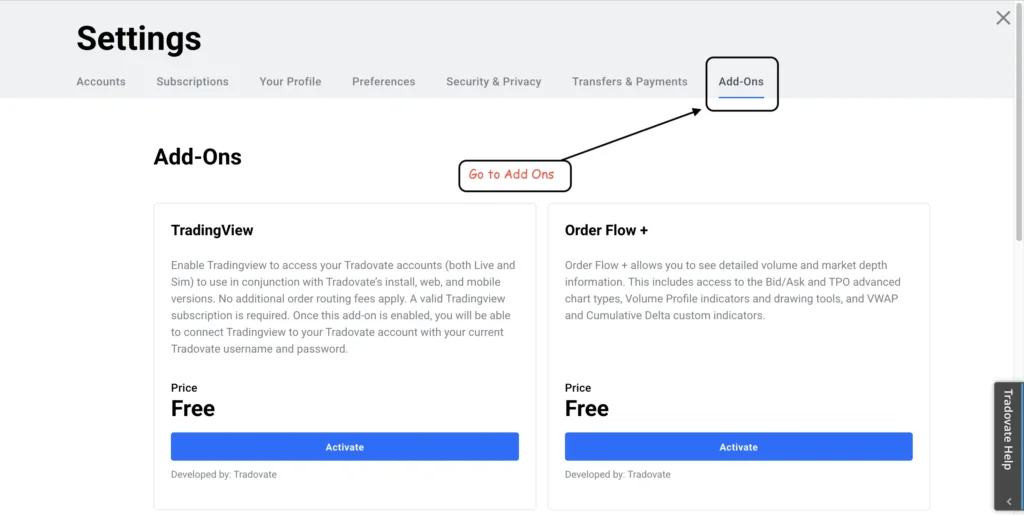
Inside Settings, find the Add-Ons section.
Tradovate uses add-ons to enable third-party integrations, including TradingView. These add-ons may be included with certain plans or require activation depending on your account type.
Step 4: Activate the TradingView Add-On
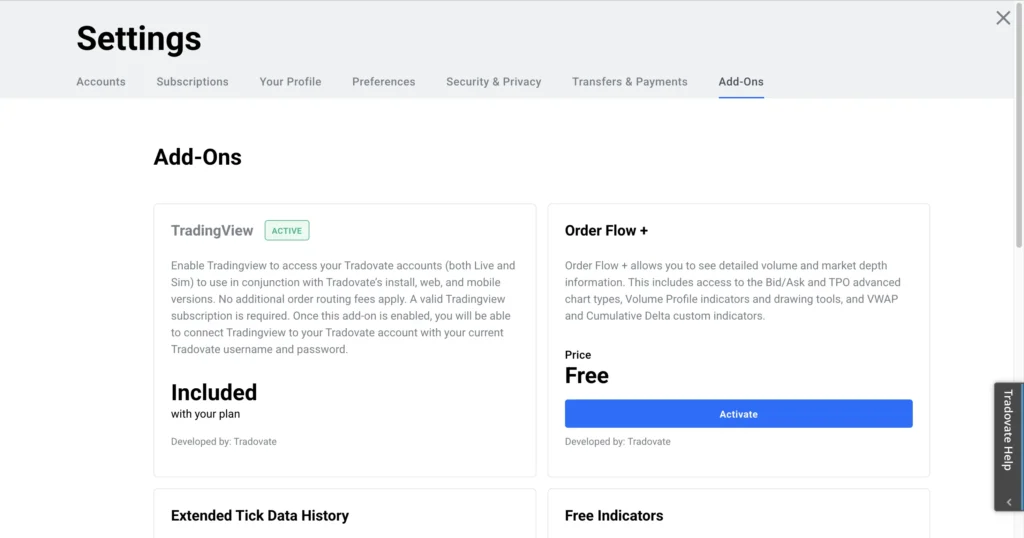
Locate the TradingView add-on and activate it.
Once enabled:
- Tradovate becomes visible as a broker option inside TradingView
- TradingView can route trades through Tradovate
- Your Apex account can be used for execution
If the add-on is not visible, your account may not support TradingView access, or the add-on may not be enabled for your specific plan.
Step 5: Log In to TradingView
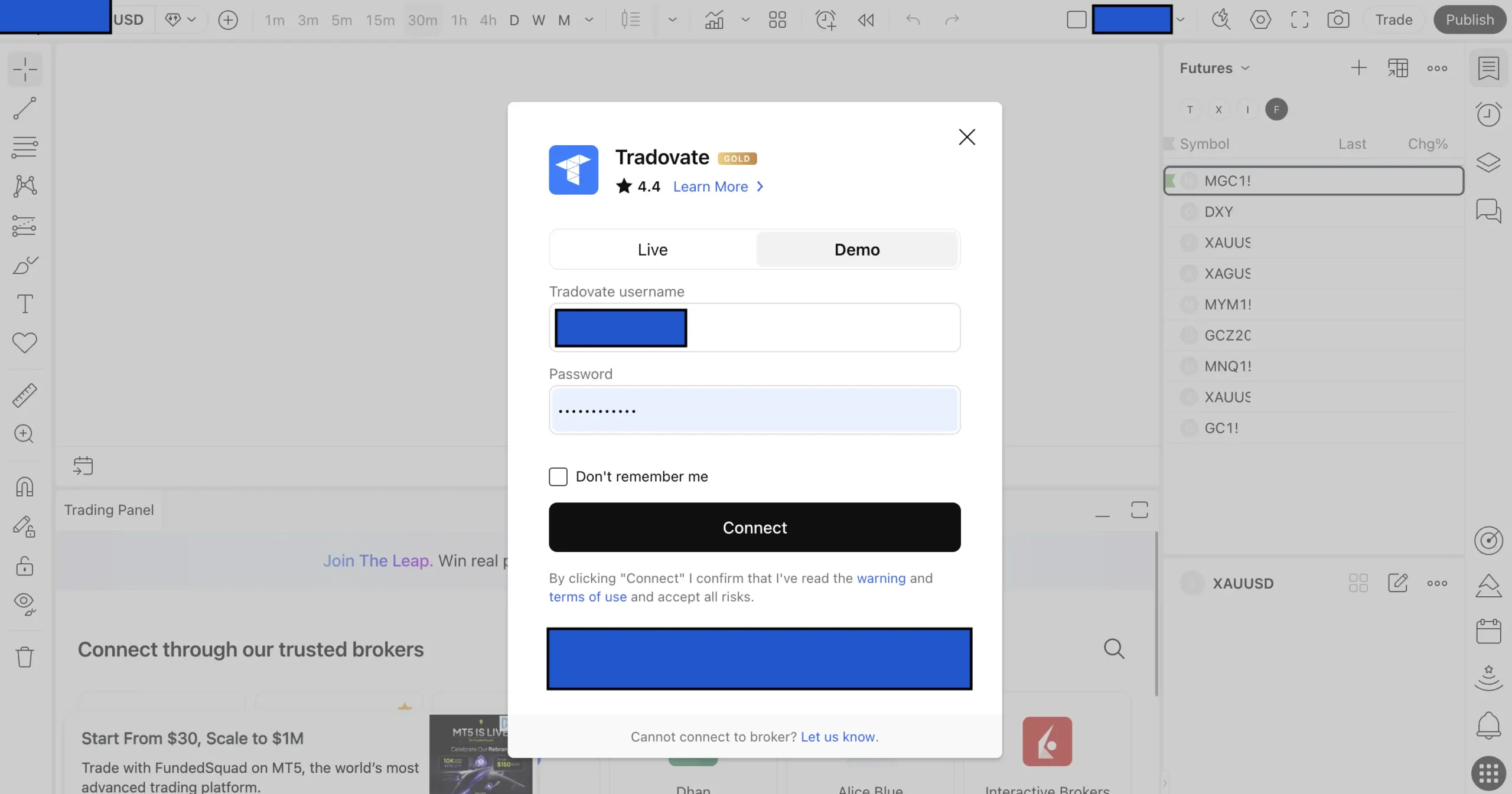
After activating the add-on, log in to your TradingView account.
You do not need a separate Apex login inside TradingView. The connection happens through Tradovate credentials.
Step 6: Open the Trading Panel in TradingView
At the bottom of the TradingView interface, open the Trading Panel.
This panel lists all supported brokers and platforms available for order routing.
Step 7: Select Tradovate and Enter Your Credentials
In the Trading Panel:
- Select Tradovate.
- Enter your Tradovate login credentials.
- Confirm the connection.
Once connected, your Tradovate account—including the Apex-linked account—should appear, allowing you to place trades directly from TradingView charts.
What You Can and Cannot Do With TradingView at Apex?
While TradingView integration is useful, it comes with important limitations.
What Works?
- Charting on TradingView
- Order placement through Tradovate
- Trading CME-listed futures supported by Apex
- Viewing positions and executions
What to Be Careful About?
- Risk rules are still enforced by Apex and Tradovate.
- TradingView does not override drawdown rules.
- Some advanced order types may behave differently.
- Latency and order handling depend on Tradovate.
TradingView is a front-end interface, not a risk-management layer.
Does TradingView Change Apex Trader Funding Rules?
No. Using TradingView does not change:
- Trailing drawdown behavior
- Static drawdown limits
- Daily loss rules
- Payout eligibility
- Contract limits
All Apex Trader Funding rules remain fully enforced at the platform level, regardless of whether trades are placed via TradingView, Tradovate, or another supported interface.
Common Issues Traders Face
Some traders encounter issues during setup. Common ones include:
- TradingView is not showing Tradovate as an option
- Incorrect Tradovate credentials
- Using the wrong Tradovate account
- Add-on not activated
- Account type not eligible for TradingView
Most issues can be resolved by verifying:
- The correct Apex-linked Tradovate account
- Add-on activation status
- Supported TradingView plan
Is TradingView Recommended for Apex Traders?
TradingView can be useful for traders who:
- Prefer clean, visual charting
- Already use TradingView indicators
- Want a unified charting environment
However, traders who rely heavily on:
- Advanced DOM features
- Platform-native order flow tools
- Proprietary Tradovate features
may prefer trading directly within Tradovate or other supported platforms.
How to Set Up Tradovate for Apex Trader Funding? (Quick Guide)
To use Tradovate with Apex Trader Funding, you must trade through an Apex-linked Tradovate account.
- Choose an Apex Trader Funding account that supports Tradovate.
- Receive your Tradovate login credentials from Apex after account setup.
- Log in to Tradovate using those credentials and confirm the correct Apex account is selected.
- Go to Settings → Add-Ons and enable the TradingView add-on if you plan to use TradingView.
- Verify CME market data access and basic trading settings before placing trades.
Once connected, all trades placed through Tradovate are executed under Apex Trader Funding’s risk and drawdown rules.
Questions Over TradingView & Apex Trader Funding
Does Apex Trader Funding work directly with TradingView?
Which platform connects Apex Trader Funding to TradingView?
Do I need a paid TradingView plan to trade Apex accounts?
Can I place trades on TradingView with an Apex account?
Does TradingView bypass Apex Trader Funding rules?
Can I use TradingView indicators while trading Apex accounts?
Is TradingView supported on both evaluation and funded Apex accounts?
Why can’t I see Tradovate in TradingView’s trading panel?
Final Answer: Does Apex Trader Funding Work With TradingView?
Yes — Apex Trader Funding works with TradingView indirectly through Tradovate. Traders can chart and place trades on TradingView once the Tradovate TradingView add-on is enabled and credentials are connected correctly. All Apex rules remain in effect, and TradingView functions only as the charting and order-entry interface.
For more info on your favorite futures prop firm, check out Futuresbuff.com